
Use a Video Instead of an Image on Shopify Product Cards
Shopify product cards show a still frame even when the first media item is a video. Here is how to make the card play the video instead, on Dawn and Horizon, without turning your collection page into a slideshow that never loads.

On this page
Key takeaways
- By default Dawn and Horizon render a product card with the featured media's preview image, so a video in position one appears as a still.
- A short edit to card-product.liquid makes the card render a muted, looping, inline video when the featured media is a video.
- Play only the cards on screen, use preload none and a poster, and cap how many cards carry video, or the collection page will get slow.
- If the goal is video that sells rather than cards that move, a shoppable widget on the collection page is less code and easier to measure.
Put a video in position one on a product and the product page gallery will show it. The collection card will not. Dawn, Horizon and nearly every Online Store 2.0 theme render the card with the featured media's preview image, so what the shopper sees is the video's first frame as a still.
That is a sensible default, because a grid of twenty autoplaying videos is a slow page. But there are cases where a moving card is worth it: a small catalogue, products whose motion is the point, a collection page that works as a lookbook. This guide shows how to make the card play the video on Dawn, how to do it without wrecking the page, and when a widget is the better answer.
Before you decide, the product page optimisation guide has the placement evidence for where video actually moves conversion; cards are not always the place.
Decide the behaviour first
There are three ways a video card can behave, and the choice shapes the code.
Autoplay loop, muted, in view. The card plays silently while on screen and pauses when it scrolls off. Best for mobile, where there is no hover. This needs the most guardrails.
Play on hover. The card shows the photo; the video plays when the pointer is over it. Desktop only, no cost for phones. Dawn's existing "second image on hover" setting is a natural base for this.
Poster with a play badge, tap to play. The card stays a still with a small play icon, and a tap opens the video in place or in a modal. Lightest option. Often the honest one, since it is what the shopper expects from a card.
If you are unsure, start with hover on desktop and poster-with-badge on mobile. Escalate to autoplay only for the collections where the motion sells.
The Dawn edit, step by step
Step 1: put the video where the card can find it
Dawn's card reads card_product.featured_media, which is the first item in the product's media grid. For autoplay cards, drag the video to position one in the admin. For hover cards, leave the photo first and put the video at position two, because Dawn's hover setting uses the second media item.
Choose the first frame of the video carefully. It becomes the poster, and on any phone with Low Power Mode, or any browser that blocks autoplay, the poster is what the shopper sees. It should look like a product photo, not a blur.
Keep the clip short and small: 5 to 10 seconds, 720p, square or the same aspect ratio as your card images so the grid stays aligned. A vertical 9:16 clip in a square card gets cropped or letterboxed depending on the theme's CSS.
Step 2: edit card-product.liquid in Dawn
Duplicate the live theme first, and make the edit on the copy. In the code editor, open snippets/card-product.liquid. Find the block that renders the featured media: it starts with a check on card_product.featured_media and contains an <img> with a srcset.
Add a branch above the image so that a video featured media renders a video element instead. Dawn versions differ in exact markup, but the shape is this:
```liquid
{%- if card_product.featured_media -%}
<div class="card__media">
<div class="media media--transparent media--hover-effect">
{%- if card_product.featured_media.media_type == 'video' -%}
<video
class="motion-reduce"
data-card-video
muted
loop
playsinline
preload="none"
poster="{{ card_product.featured_media.preview_image | image_url: width: 533 }}"
aria-label="{{ card_product.featured_media.alt | default: card_product.title | escape }}"
>
{%- for source in card_product.featured_media.sources -%}
{%- if source.format == 'mp4' -%}
<source src="{{ source.url }}" type="{{ source.mime_type }}">
{%- endif -%}
{%- endfor -%}
</video>
{%- else -%}
{%- comment -%} existing <img ... srcset ... > stays here unchanged {%- endcomment -%}
{%- endif -%}
</div>
</div>
{%- endif -%}
```
Notes on the choices:
muted,loopandplaysinlineare the attributes phones require for silent inline playback. Without all three, iOS shows a play button.- There is deliberately no
autoplayattribute. Playback is started by the script in the next step, only when the card is in view. Anautoplayattribute on twenty cards would try to start all of them. preload="none"stops the browser fetching any video bytes until asked. The poster carries the visual until then.- Only MP4 sources are listed. Shopify also provides an HLS stream, which Chrome cannot play; listing MP4 alone keeps behaviour consistent across browsers.
- The
motion-reduceclass is Dawn's hook for respecting the operating system's reduced-motion setting.
The CSS for .card__media video should match whatever .card__media img does: width:100%; height:100%; object-fit:cover; display:block. Add it in assets/component-card.css or the theme's custom CSS.
Step 3: play only what is on screen
This is the part that separates a usable collection page from a slow one. A small script watches the video cards and plays a card when it enters the viewport, pausing it when it leaves. Add it as a deferred script in layout/theme.liquid or as a new asset:
```js
document.addEventListener('DOMContentLoaded', () => {
const videos = document.querySelectorAll('video[data-card-video]');
if (!videos.length || !('IntersectionObserver' in window)) return;
if (window.matchMedia('(prefers-reduced-motion: reduce)').matches) return;
const io = new IntersectionObserver((entries) => {
entries.forEach(({ target, isIntersecting }) => {
if (isIntersecting) {
target.muted = true;
const p = target.play();
if (p) p.catch(() => {});
} else {
target.pause();
}
});
}, { threshold: 0.5 });
videos.forEach((v) => io.observe(v));
});
```
Three things it does on purpose. It bails out entirely if the shopper has reduced motion enabled. It sets muted as a property before calling play(), because some browsers ignore the attribute for autoplay eligibility when the element was created by a template. And it swallows the rejection from play(), which is what happens in iOS Low Power Mode, so that the poster simply stays.
With threshold: 0.5, a card starts when half of it is visible, so on a two-column mobile grid at most four to six cards play at once.
Cap it
Even with in-view playback, a collection of 48 products with a video on every card is a lot of decoding on a mid-range phone. Either restrict video to the first row or two (check forloop.index in the collection grid and pass a flag into the card snippet) or reserve video cards for a curated collection rather than the full catalogue.
Step 4: check what else reads the first media item
Moving a video into position one affects more than the card. Several other systems read the product's featured media and expect an image.
- Social previews. Shopify's default
og:imageuses the product's featured image. For a video in position one, that resolves to the video's preview frame, which is why the first frame has to look like a photo. - Shopping feeds. Google Merchant Center, Meta catalogue and marketplace feed apps usually take the first product image for
image_link. Some readproduct.featured_image, which returns the poster; others readproduct.images, which skips the video and returns the first real image. Check the feed after the change and make sure the listing still has a proper photo. - Email and cart. Abandoned-cart emails and the cart drawer use the variant image or the featured image. Both fall back sensibly, but confirm the poster looks right at thumbnail size.
If any of these break, the hover approach (photo first, video second) sidesteps all of them and is often the better trade.
The hover variant for desktop
Dawn's collection settings include an option to show the second media item on hover. The stock implementation swaps in a second <img>. Adapting it for video keeps the still photo as the default and plays the clip only for desktop shoppers who hover.
In the same snippet, where the secondary image is rendered (the block that checks card_product.media[1] and the show_secondary_image flag), add a video branch:
```liquid
{%- if show_secondary_image and card_product.media[1] != null -%}
{%- if card_product.media[1].media_type == 'video' -%}
<video class="motion-reduce" data-card-hover muted loop playsinline preload="none"
poster="{{ card_product.media[1].preview_image | image_url: width: 533 }}">
{%- for source in card_product.media[1].sources -%}
{%- if source.format == 'mp4' -%}
<source src="{{ source.url }}" type="{{ source.mime_type }}">
{%- endif -%}
{%- endfor -%}
</video>
{%- else -%}
{%- comment -%} existing secondary <img> {%- endcomment -%}
{%- endif -%}
{%- endif -%}
```
Then a few lines of script play on mouseenter and pause on mouseleave:
```js
document.querySelectorAll('.card__media').forEach((media) => {
const v = media.querySelector('video[data-card-hover]');
if (!v) return;
media.addEventListener('mouseenter', () => { v.muted = true; v.play().catch(() => {}); });
media.addEventListener('mouseleave', () => { v.pause(); v.currentTime = 0; });
});
```
Dawn's existing hover CSS fades the second media in over the first; the video inherits that if it uses the same classes as the secondary image. Phones have no hover, so mobile shoppers get the photo, which is often the right outcome.
Cards that appear after page load
card-product.liquid is reused by more than the collection grid. Dawn renders the same snippet in predictive search results, the "you may also like" recommendations section, and sometimes in cart drawer upsells. Two consequences follow.
First, the observer script above runs once on DOMContentLoaded, so cards injected later by search or recommendations are never observed and never play. If you want them to, wrap the observer setup in a function and call it again after those sections load, or use a MutationObserver on the document body to pick up new video[data-card-video] elements. Keep it simple: for most stores, video cards in the collection grid are enough, and cards in search and recommendations can stay as images.
Second, if you would rather video cards appear only in the main grid, pass a flag into the snippet. Dawn's main-collection-product-grid.liquid renders each card with a render 'card-product' call; add a parameter such as allow_video: true there, default it to false inside the snippet, and check it in the branch. Search and recommendations then render the stock image card without any further change.
Aspect ratio and cropping
Dawn's card media container uses the product image's aspect ratio, or a fixed ratio set in the theme editor (square, portrait, or adapt to image). A video that does not match will be letterboxed or cropped depending on object-fit.
Export card videos at the same ratio as your product photos. If your photos are square, a 1:1 crop of the clip keeps the grid even. If the theme is set to portrait cards, 4:5 works and 9:16 will lose the top and bottom. Setting object-fit: cover on the video element crops rather than letterboxes, which usually looks better, but make sure the product stays inside the safe area of the frame when you export.
Check the grid on both a phone (two columns) and a wide desktop (four or five columns). A clip that fills a two-column card can look small and busy at four columns, where a still photo would have been clearer.
Horizon and other themes
Horizon's product card is also a snippet, but the file names and structure differ from Dawn's and change between versions. The approach is identical: find where the card renders the featured media's image, branch on media_type == 'video', output a muted inline video with preload="none" and a poster, and drive playback from an in-view observer. Search the theme's snippets for featured_media to find the right file.
Themes that loop over product.images rather than product.media cannot see video at all, on cards or anywhere else. That is a bigger fix and the product video not showing guide covers it.
Video product card approaches compared
| Approach | Mobile | Desktop | Page cost | Effort |
|---|---|---|---|---|
| Autoplay in view | Plays silently | Plays silently | Medium, needs cap and observer | Snippet edit plus script |
| Hover to play | Shows photo | Plays on hover | Low | Snippet edit plus small script |
| Poster with play badge | Tap to play | Click to play | Lowest | Snippet edit and CSS |
| Shoppable widget on the collection page | Lazy-loads, tags products | Same | Low | App block, no code |
Measuring the cost
Before publishing the duplicate theme, run a mobile Lighthouse test on a collection page in both themes. Watch three numbers: Largest Contentful Paint (the poster of a video card in the first row is now a candidate), Total Blocking Time (the observer script should add almost nothing), and total transferred bytes before any scroll (should be posters only, no MP4 requests).
Open the page on a real phone with the Network tab attached. If you see MP4 downloads before scrolling, preload is wrong or the observer is playing off-screen cards. If the page is noticeably slower than the image-only version, reduce the number of video cards rather than the video quality; it is the count that hurts.
The video and bounce rate article has the full before-and-after method for pages with video.
Video product cards launch checklist
- Edit made on a duplicate theme and previewed, not on the live theme
- Video is position one (autoplay) or position two (hover) in the product's media grid
- First frame chosen so the poster reads as a product photo
- Clip 5 to 10 seconds, 720p, matching the card aspect ratio
- Video element has muted, loop, playsinline and preload none; no autoplay attribute
- Only MP4 sources listed
- In-view observer plays and pauses; reduced motion respected
- Number of video cards per page capped
- Mobile Lighthouse compared before and after
- Tested on a real iPhone and Android phone, including with Low Power Mode on
When cards are the wrong place for video
Ask what the video is for. If the answer is "the collection page should feel alive", moving cards do that. If the answer is "the video should sell the product", a card is a weak container: it is small, it has no product tag, no add-to-cart, and no attribution.
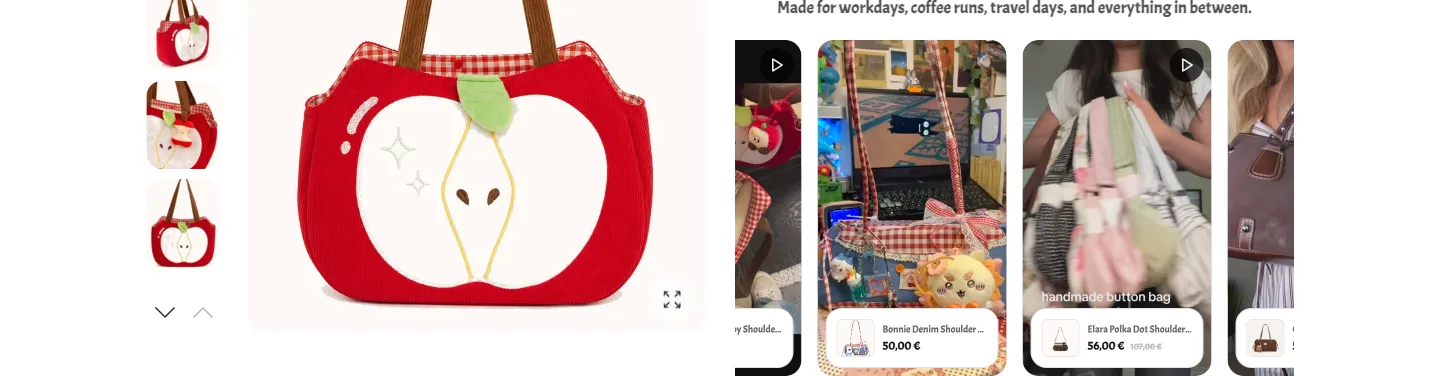
A shoppable widget placed on the collection template solves that with an app block and no snippet edits. A carousel or grid above the product rows plays reels and UGC lazily, tags each clip to a product, and reports views, watch time, add-to-cart and revenue per video. The cards stay as images, which keeps the page light, and the video does the persuading in a container built for it.
The shoppable video examples collection shows both patterns on real collection pages, and the short-form video and ecommerce sales article covers what the tagged approach changes in the numbers.
Do the card edit when the catalogue is small and the motion is the product. Do the widget when you want to know whether the video paid for itself.
Frequently asked questions
- Can a Shopify product card show a video instead of an image?
- Yes, with a theme edit. Dawn and most Online Store 2.0 themes render the featured media's preview image on cards.
- Which file do I edit in Dawn to put video on product cards?
- snippets/card-product.liquid. It is used by collection grids, search results, featured collections and recommendations, so the change applies everywhere cards appear. Make it on a duplicate theme first and preview before publishing.
- Will video product cards slow down my collection page?
- They will if every card downloads its video on page load. Use preload none, a poster image, an IntersectionObserver that plays only cards in view, and cap the number of video cards per page.
- Do video product cards autoplay on iPhone?
- Only if the video element has muted, autoplay, loop and playsinline. Without muted and playsinline, iOS shows the first frame with a play button.
- Can I make the video play on hover instead of autoplay?
- Yes, and on desktop it is the better pattern. Dawn already has a setting to show the second media item on hover.
- Is there a way to get video on collection pages without editing the theme?
- Yes. Place a shoppable video widget on the collection template as an app block, above or between the product rows.