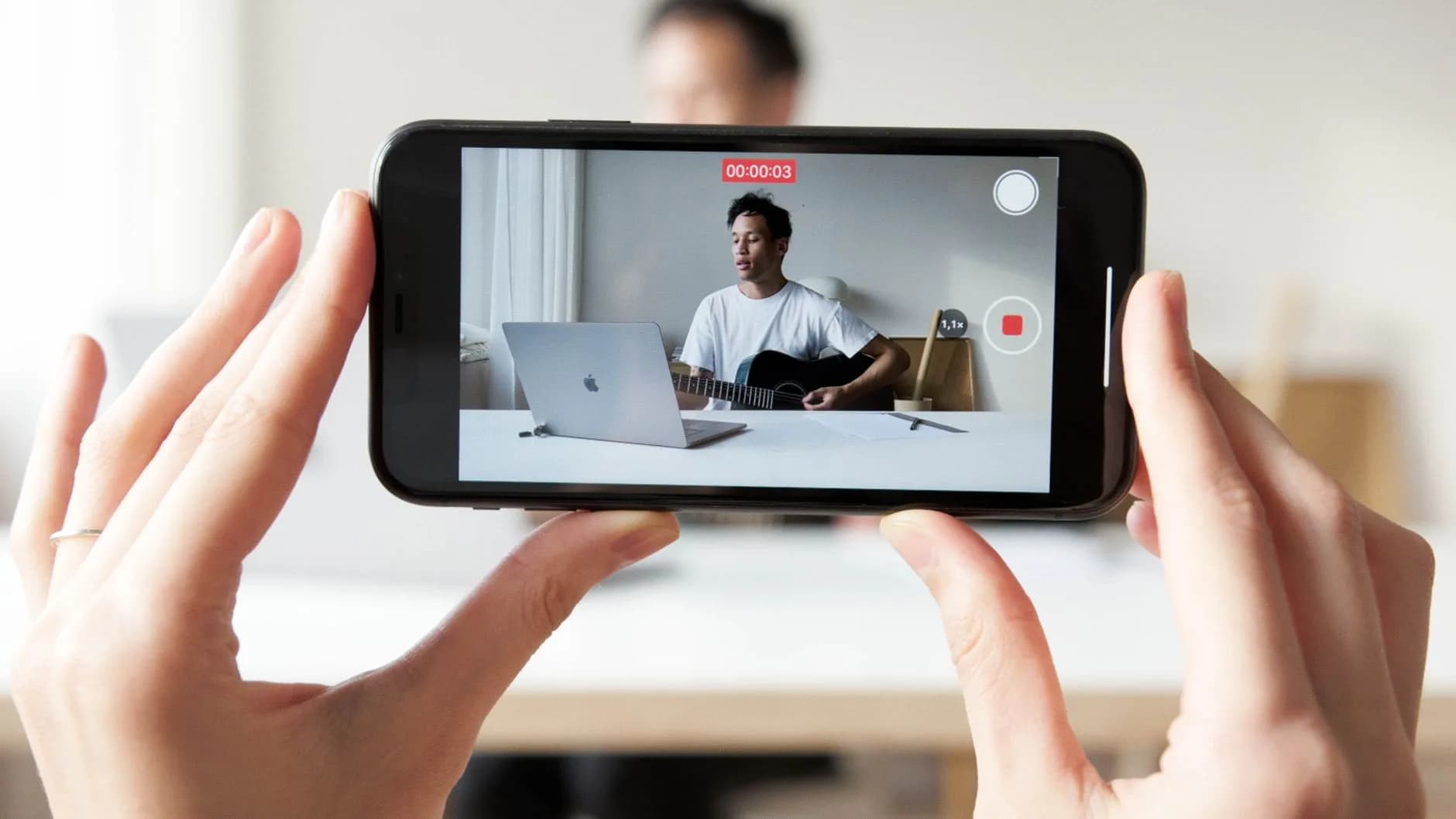

How to Embed a Single Instagram Reel on Shopify (no-app vs app)
You can embed one public Instagram Reel on a Shopify page in five minutes with Instagram's own embed code and no app. It works, with three limits worth knowing about before you do it on a product page. This guide covers the no-app route step by step, what it cannot do, and when a widget is the better choice.
On this page
Key takeaways
- Instagram's official embed code still works for a single public Reel and needs no app, no API and no business account.
- The embed is an iframe that is not lazy-loaded and cannot tag a product, so it suits a blog post or About page more than a product page.
- Paste the code into a Custom Liquid section on Dawn or Horizon, not into the page's rich text editor, which strips scripts.
- For product pages, or more than a couple of Reels, an app widget imports the Reel as a lazy-loaded video with add-to-cart inside the player.
You can embed a single public Instagram Reel on a Shopify page without an app. Open the Reel on instagram.com, choose Embed from the three-dot menu, copy the code, and paste it into a Custom Liquid section in your theme editor. It takes five minutes, needs no API, no business account and no subscription, and it still works after Instagram's API changes in December 2024. What it gives you is an iframe that plays the Reel and links back to Instagram. What it does not give you is lazy loading, product tagging or add-to-cart, which is why the no-app route suits a blog post or About page and an app widget suits a product page.
This guide covers both routes. The first half is the no-app method step by step, including where the code has to go and why it goes blank. The second half covers what the embed cannot do and when a widget is worth the install.
If your bigger goal is turning Reels into revenue rather than showing one on a page, the Instagram Reels to Shopify sales guide covers the strategy side.
Which route you need
There are two different jobs here and they want different tools.
Job one is showing a Reel on a page. A brand story Reel on the About page, a behind-the-scenes clip in a blog post, a customer's Reel on a press page. The official embed does this well and costs nothing.
Job two is selling from a Reel. The Reel sits on a product page or the home page, the shopper taps a product and adds it to the cart without leaving the video. The official embed cannot do this, because it is Instagram's player in an iframe, and Instagram's player links to Instagram. For job two you need an app that imports the Reel as a video file and wraps it in its own player with product tags. The guide to shoppable Reels on Shopify walks through that setup.
If you are not sure which job you have, ask whether a shopper who watches the Reel should be able to buy what is in it. If yes, skip to the app section.
The no-app method, step by step
Step 1: get the embed code from Instagram
On a desktop browser, open the Reel on instagram.com. Click the three-dot menu on the post and choose Embed. Untick "Include caption" if you want a cleaner block, then click Copy embed code.
The Reel must be public. A Reel on a private account, or one you have set to hidden from profile, will produce an embed that renders as an empty grey box.
The code you copied is a blockquote element with Instagram's classes and data attributes, followed by a script tag that loads Instagram's embed script. Both parts are needed. The blockquote is what the script turns into the iframe.
Step 2: paste it into a Custom Liquid section
Do not paste the code into a page's rich text editor in Shopify admin. That editor strips script tags, and without the script the blockquote stays a blockquote.
Instead, open Online Store, Themes, Customize. Navigate to the page where you want the Reel. Click Add section and choose Custom Liquid. On Dawn, Horizon and most Online Store 2.0 themes it is in the default list. Paste the whole embed code into the Liquid field and save.
For a product page, add a Custom Liquid block inside the product information section rather than a separate section, so it sits near the gallery instead of at the bottom of the template.
Step 3: check it on a phone
Preview the page on a real phone and in a private window on desktop. The Reel should render as Instagram's player with the vertical video, the account name and a link back to Instagram. If it shows a grey box, the troubleshooting section below covers the four causes.
Constrain the width
Instagram's embed defaults to a maximum width of 540 pixels and stretches to fill narrow screens. On a desktop product page that is wider than most galleries. Wrap the pasted code in a div with a max-width, for example 360 pixels, and centre it with margin auto. The Custom Liquid field accepts plain HTML around the embed code.
What the official embed cannot do
This is the honest part, and it is what decides whether the no-app route belongs on a product page.
It is not lazy-loaded. The embed script and iframe load on every page view whether or not the shopper scrolls to it. On a blog post that is acceptable. On a product page it will register in PageSpeed Insights and it lands on a page that is already carrying a gallery and an add-to-cart. The bounce rate and video article covers why that matters on mobile.
It cannot tag a product. The player is Instagram's. Tapping it plays the Reel; tapping the account name or logo goes to Instagram. There is no way to attach a product, a price or an add-to-cart. A shopper who wants to buy what they saw has to close the video and find the product themselves.
It sends traffic to Instagram. The embed is designed to bring viewers to Instagram, not to keep them on your store. The link is part of the embed and cannot be removed.
It depends on the Reel staying public. Delete the Reel, archive it, or switch the account to private and every page that embeds it shows a grey box. There is no warning.
It is one Reel per embed. Five Reels on one page means five iframes and five script loads. That is where the no-app route stops being free in any meaningful sense.
No-app embed against an app widget
| Aspect | Instagram embed code | App widget |
|---|---|---|
| Cost | Free | Free tier or subscription |
| Setup | Copy code, paste into Custom Liquid | Connect account, import, add block |
| Lazy-loaded | No, loads on every view | Yes, on the apps built for it |
| Product tag and add-to-cart | No | Yes |
| Traffic stays on your store | No, links to Instagram | Yes |
| Works if the Reel is later deleted | No | Yes, the video was imported |
| Best placement | Blog, About, press page | Product, collection, home page |
When an app widget is the right choice
Use a widget when the Reel is there to sell, when it sits on a product page, or when you want more than two or three on the site.
A shoppable video app imports the Reel from your connected Instagram business account, stores the video file, and renders it in its own player as a lazy-loaded block you add from the theme editor. The player carries a product tag, so the shopper taps the product and adds to cart inside the video. Because the file was imported, the video keeps working if the original Reel is later archived. And because the block is a theme app extension, it survives theme updates and comes out cleanly on uninstall.
The import requires an Instagram business or creator account connected through the Graph API. A personal account cannot be connected to any Shopify app, so switch the account type in Instagram settings before installing. The switch is free and reversible.
Placement is the other thing an app makes easy. The same Reel can be an inline block on the product page, a story bubble on the home page and a card in a carousel on the collection page, without three copies of an iframe. The guide to adding shoppable video on Shopify covers which placement converts for which kind of store.
Troubleshooting a blank or broken embed
Four causes cover nearly every grey box.
- The Reel is not public. Private account, hidden from profile, or deleted. Open the Reel's URL in a private window; if Instagram asks you to log in, the embed will not render for shoppers either.
- The script tag was stripped. You pasted into a rich text editor. Move the code into a Custom Liquid section or block.
- A browser extension is blocking it. Ad blockers and privacy extensions commonly block Instagram's embed script. Test in a private window with extensions off, and on a phone.
- Two embeds, one script. If you pasted two Reels into two sections, each brings its own script tag. That is fine, the script handles duplicates, but a theme or app that defers third-party scripts can delay both. Check the page with the theme's other apps disabled if the embed appears only after a long wait.
If the embed renders but the video sits on its first frame on a phone, that is normal. Mobile browsers block autoplay with sound, and Instagram's embed waits for a tap. The mobile autoplay guide explains the rules if you expected it to move on its own.
Before you put an embedded Reel on a product page
- The Reel is public and the account is not private
- The code is in a Custom Liquid block, not the rich text editor
- Width is constrained so the player does not dominate the gallery
- You ran PageSpeed Insights on the page before and after adding it
- You are fine with the video linking shoppers to Instagram
- You do not need a product tag or add-to-cart on this video
- There are no more than two embeds on the page
A note on the December 2024 API change
Merchants searching for this topic often find advice written before Instagram removed the Basic Display API in December 2024. That change broke most no-app Instagram feed embeds, the ones that pulled a grid of recent posts onto a page, because they relied on that API. Feeds now need the Instagram Graph API through a business account, which in practice means an app. The Shopify Instagram feed without an app article covers what still works on that front.
The single-post embed code is a different mechanism. It is Instagram's public embed, the same one blogs and news sites use, and it continues to work for any public Reel. So if you read that "Instagram embeds are dead", that is about feeds, not about the one Reel you want on your About page.
Putting it together
For one Reel on a content page, use the embed code. It is free, takes five minutes and does exactly what it says. Constrain the width, put it in Custom Liquid, and check it on a phone.
For a Reel that should sell, use a widget. The lazy loading protects the product page, the product tag turns a view into a cart, the imported file survives whatever happens on Instagram, and the analytics tell you whether the Reel earned its place. The guide to adding video to Shopify product images covers the other option of uploading the clip into the gallery, which is right when the video belongs to one product and does not need a tag.
Frequently asked questions
- Can I embed an Instagram Reel on Shopify without an app?
- Yes. Open the Reel on instagram.com, choose Embed from the menu, copy the code and paste it into a Custom Liquid section in the theme editor.
- Why does my embedded Reel show a blank box?
- The most common causes are a private account, a Reel that was deleted or set to hidden, the code pasted into a rich text field that stripped the script tag, or a browser extension blocking Instagram's script on your machine.
- Does the Instagram embed slow down my Shopify page?
- It adds an iframe and Instagram's embed script on every load, and it is not lazy-loaded, so it will register in PageSpeed Insights. On a blog post that is usually acceptable.
- Can shoppers buy a product from an embedded Reel?
- Not from the official embed. It plays the Reel and links back to Instagram.
- Does the embed still work after Instagram removed the Basic Display API?
- Yes. The API shutdown in December 2024 broke feed embeds that pulled a whole grid of posts. The single-post embed code is a different mechanism and continues to work for public content.
- Can I embed a Reel on a product page?
- You can, using a Custom Liquid block inside the product template. Whether you should depends on speed and on whether you need the video to sell the product.
- Which is better for Indian, UK or Australian stores?
- The mechanism is the same everywhere. What changes is your shoppers' network: on slower mobile connections the non-lazy iframe is more noticeable, which tilts product pages toward a lazy-loaded widget.