
Add a TikTok-Style Swipe Feed to Your Shopify Store
A TikTok-style feed on a Shopify store is a full-screen, vertical, swipeable video player with product tags. Here is where it belongs, the three ways to build one, the setup steps for the app route, and the rules that keep it fast and useful rather than a gimmick.

On this page
Key takeaways
- A TikTok-style feed is a vertical, one-video-at-a-time player that shoppers swipe through, with a product tag on each clip that opens add to cart.
- It earns its place on the home page, on collection pages and on campaign landing pages. On product pages a smaller inline or stacked widget usually fits better.
- Building one by hand means writing the swipe, autoplay and lazy-load logic yourself. An app block gives the same result from the theme editor with no code.
- The feed is only as good as its loading. Poster images, muted inline autoplay and fetching one clip ahead are what separate a fast feed from a slow one.
A TikTok-style feed on a Shopify store is a vertical, full-height video player that shows one clip at a time and moves to the next on a swipe, with a product tag on each clip that opens add to cart. The quickest way to add one is an app block from the theme editor: build a feed of vertical clips, tag the products, drop the block on the home page or a collection, and let the app handle swipe, autoplay and lazy loading.
You can also build it by hand, and this guide covers when that makes sense. Mostly it does not, because the hard part of a swipe feed is not the layout, it is the loading logic that keeps a page with twenty videos on it as fast as a page with none.
What follows is where the feed belongs, the three ways to build one, the setup steps, and the design and speed rules that decide whether shoppers use it. If you are still working out whether short vertical video suits your catalogue at all, the short-form video and ecommerce sales guide is the place to start.
What the feed is and what it is not
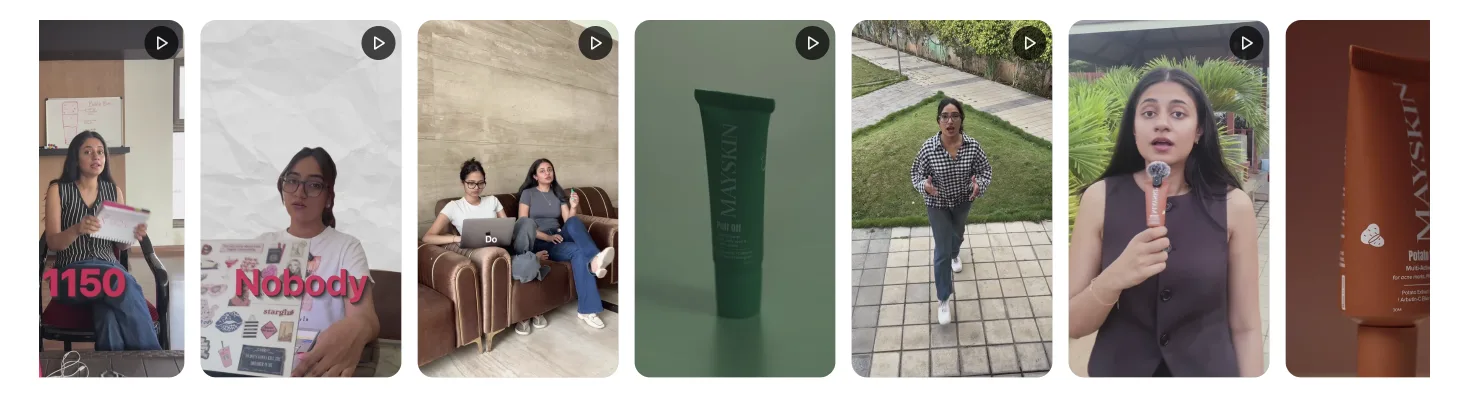
The format has a few defining traits that a store should copy and a few it should not.
Copy these:
- Vertical, one clip at a time. The video fills the container's height. There is no grid of small players.
- Swipe to advance. On mobile, a vertical swipe moves to the next clip. On desktop, arrows or a scroll wheel do the same.
- Overlaid information. A short caption and a product tag sit on top of the video, not beneath it.
- Muted autoplay with tap for sound. The visible clip plays silently as soon as it is on screen.
Do not copy these:
- Infinite scroll. TikTok's feed never ends because its job is attention. Your feed's job is to sell, so it should end, and the last slide should point somewhere useful.
- An algorithmic order. You choose the order, and the first clip should be your strongest.
- Comments and likes. They add scripts and add nothing to a purchase decision.
The result is a shopping tool that borrows a familiar gesture, not a copy of a social app inside your store.
Where it earns its place
The feed works where shoppers are browsing and discovering, and works less well where they have already chosen.
Home page. A full-width feed section, or a row of vertical thumbnails that opens the feed on tap, gives a first-time visitor a fast tour of what you sell in use. This is the highest-traffic placement and usually the highest total attributed revenue.
Collection pages. A feed above the product grid shows the collection's products in motion before the shopper reaches the cards. It is especially effective for fashion, beauty and anything where fit or texture matters.
Campaign landing pages. A feed of creator content around one launch turns a static landing page into a lookbook. Since the page has one purpose, the feed can be the main element.
Product pages. Less suited. A full-height feed pushes price and add to cart below the fold. An inline or stacked widget beside the gallery gives the same video with less disruption. If the goal is short vertical clips on a product page, the Stories-style widget guide covers the compact format that fits there.
Three ways to build one
Building a TikTok-style feed on Shopify
| Approach | Effort | Product tagging | Speed handling | Survives theme updates |
|---|---|---|---|---|
| TikTok embed codes in a custom section | Low | No | Poor, loads TikTok's player per clip | Yes, but not a swipe feed |
| Custom-coded section with a video slider | High | Only if you build it | Only if you build it | No, and needs a developer to maintain |
| App block from a video app | Low | Yes | Built in | Yes |
Embed codes are the fallback if all you need is to show a TikTok on a page. Each embed loads TikTok's own script and player, which is heavy, and there is no way to overlay your own product tag. It is not a feed.
Custom code gives full control. You would write a section with a vertical slider, a video element per slide with poster, muted, playsinline and preload="none", an IntersectionObserver to play and pause the visible clip, and a product card that calls Shopify's cart API when tapped. It is a few days of work for a competent theme developer, and it will need attention after every theme update and every iOS release that changes autoplay behaviour.
An app block does the same thing with none of the maintenance. SwipeReel, for instance, provides four theme app extension widgets (Inline, Overlay, Stacked and Stories) plus carousel and grid layouts, imports the clips from Instagram Reels and TikTok, handles product tags and add to cart, and lazy-loads so it does not block page render. The trade-off is a dependency on the app and, on free plans, a limit on how many videos are live at once.
For most stores the app route wins on cost and the custom route only makes sense when the feed is central to the brand and there is a developer on staff.
Setting up the feed from the theme editor
The steps assume a theme app extension widget, which is how Shopify expects apps to add sections to Online Store 2.0 themes such as Dawn and Horizon.
- Install the app and connect your Instagram or TikTok account, or bulk upload vertical clips filmed on a phone. Vertical 9:16 is the target; landscape clips will show with bars or get cropped.
- Create a feed. Add the clips in the order you want them to play, strongest first. Six to twenty is a sensible range.
- Tag a product on each clip. Choose the product that the clip actually shows, not the bestseller you would prefer to push.
- In Shopify admin, go to Online Store > Themes and click Customize.
- Choose the page from the selector at the top: Home page, or Collections and then the template.
- Click Add section, find the app's blocks under Apps, and choose the layout. For a TikTok-style feed, the Overlay or Stacked layout is closest to the format; a carousel of thumbnails that opens a full-screen player on tap is the common home page pattern.
- Select the feed, set autoplay to muted, and confirm lazy loading or on-scroll loading is enabled.
- Save and test on a real phone, not the theme editor's mobile preview, because the preview does not reproduce Safari's autoplay rules.
That is the whole setup. Changing the clips later happens in the app, not the theme, so the feed can be refreshed weekly without touching the theme editor again.
Put the feed below the first screen on the home page
A full-height video section as the first thing on the home page makes its poster image the Largest Contentful Paint element and delays everything else. Put a headline, a hero image or a short value proposition first and the feed immediately after. The feed still appears within one scroll, and the page is measurably faster.
Sourcing clips that suit the format
The feed is vertical and short, so the content has to be too. Three sources cover almost every store.
Your own Reels and TikToks. If you post on either platform already, the footage exists and is already the right shape. Importing it into a feed reuses work you have done. The TikTok to Shopify sales guide covers how to pick which posts translate to a store context and which stay on the platform.
Customer content. Unboxings, try-ons and reviews filmed by customers are the clips that shoppers trust most. Ask for permission before you import, and credit the creator on the clip. The UGC video guide for Shopify covers collecting it and the rights you need.
Phone-filmed product clips. A ten-second clip of the product in use, filmed vertically on a phone in good light, beats a studio spin for this format. Use a plain background and no talking, since most viewers watch muted.
Avoid landscape clips, clips longer than thirty seconds, and anything that needs sound to make sense. If the clip has a spoken line that matters, burn captions into the video before uploading.
Making it shoppable
The product tag is what turns a video feed into a sales tool, and its design decides whether anyone taps it.
Tag the product that is on screen. A shopper who taps a tag on a video of a jacket and gets a card for a different jacket loses trust in every tag after it.
Keep the card light. Price, the variant selector, stock status and an add to cart button. Anything else, such as a full description, belongs on the product page, and the card should link there for shoppers who want it.
Show one tag on most clips. Clips that show an outfit or a routine can carry several, and Pro plans on most apps allow unlimited tags per video, but every extra tag adds a decision. If you are on a free plan with one tag per video, tag the hero product and let the product page cross-sell the rest.
Confirm the add to cart works without leaving the feed. The shopper should be able to add, see a confirmation, and keep swiping. Sending them to the cart page after every add breaks the browsing that the feed exists to encourage.
Keeping it fast
A swipe feed can contain twenty videos and still be light, because only one plays at a time. The rules that make that true:
- Poster image on every clip, sized for the container, so the feed paints before any video arrives.
preload="none"on every video element, with the app fetching the current clip and one ahead as the shopper swipes.- Muted autoplay with
playsinline, so iOS and Android play without a tap. Sound comes on with a tap on the clip. iOS Low Power Mode still blocks autoplay and shows a play button, which is expected. - Pause what is off screen. The clip the shopper just swiped away from should stop, not keep decoding in the background.
- Deferred script. The app's JavaScript should load after the page has rendered. A synchronous script in the head is the most common cause of a video app hurting speed scores, and it has nothing to do with the videos.
Test it: open the page on a phone with the browser's developer tools connected, filter the Network tab by Media, and load the page without touching it. One video request is right. Twenty is wrong. If autoplay fails on an iPhone after all this, the mobile autoplay guide works through the remaining causes.
Design rules that stop it feeling like a gimmick
Shoppers know the format from social apps, and a half-hearted copy reads as an ad unit. A few rules keep it credible.
Lead with the strongest clip. The first video decides whether anyone swipes.
Keep captions short and useful: what the product is, one reason to care. Not hashtags.
Make the end useful. The last slide should offer the collection or a related feed, not loop back to the start silently.
Match the theme. The tag, the card and the buttons should use the store's fonts and colours. Most apps allow this from settings, and custom CSS on higher plans covers the rest.
Show it on desktop too, but smaller. A vertical feed that fills a desktop viewport is mostly empty space. A centred column or a carousel that opens a modal player is the usual desktop treatment.
Before the feed goes live
- Every clip is vertical, under thirty seconds and understandable without sound
- Every tag points to the product actually on screen
- Add to cart works from the feed without leaving the page
- Feed sits below the first screen, not as the page's first element
- Poster images load before video, and only the visible clip requests its file
- Muted autoplay with playsinline confirmed on a real iPhone and Android phone
- PageSpeed Insights run on the page before and after adding the feed
- Last slide points to a collection or related feed
Measuring whether it works
Views tell you the feed was seen. What you want are product tag clicks, add-to-carts and attributed revenue per clip, which most video apps report and Shopify's own analytics cannot.
After two weeks, rank the clips by click rate. Replace the bottom quarter, keep the top half, and notice what the top half has in common. On many stores it is customer-filmed clips of the product in use, which is a useful brief for what to film next. Rotate the feed monthly and it keeps working; leave it untouched for a year and it becomes wallpaper.
Frequently asked questions
- What is a TikTok-style feed on a website?
- It is a video player that copies the TikTok layout: vertical full-height video, one clip on screen at a time, swipe or scroll to move to the next, with overlaid text and a product tag.
- Can I add a TikTok feed to Shopify without an app?
- You can embed individual TikTok videos using TikTok's embed code in a custom Liquid section, but that gives you TikTok's player, not a swipe feed, and no product tagging.
- Does a swipe feed slow down my Shopify store?
- Only if it loads every video at once. A well-built feed shows poster images first, plays the visible clip muted, and fetches the next clip only as the shopper swipes towards it.
- Do the videos have to come from TikTok?
- No. The name describes the layout, not the source. You can fill the feed with TikTok videos, Instagram Reels, customer UGC or clips filmed on a phone.
- Where should the feed go on my store?
- Home page and collection pages are the usual spots, either as a full-width section or as a carousel of thumbnails that opens the swipe feed when tapped. Campaign landing pages work well too.
- Will the feed autoplay on iPhone?
- Yes, if the clip is muted and set to play inline, which any purpose-built feed handles.
- How many videos should a feed contain?
- Enough that a shopper who keeps swiping does not hit the end within a few seconds, and few enough that every clip earns its place. Between six and twenty is typical.