
Instagram-Style Stories Widget for Shopify: Add Story Bubbles That Sell
Story bubbles are the most compact way to put video on a Shopify page. Here is how to add an Instagram-style stories widget, what goes in each bubble, where it belongs, and how to keep it from slowing the store.

On this page
Key takeaways
- A stories widget shows a row of circular thumbnails; tapping one opens a full-screen vertical player with a product tag, which is the pattern shoppers already know from Instagram.
- The row belongs high on the home page and directly under the buy box on product pages, one row only, five to eight bubbles.
- Each bubble should answer one question a shopper has, and the label under it should say which.
- Story videos should load only when tapped, so the row costs the page almost nothing until a shopper engages.
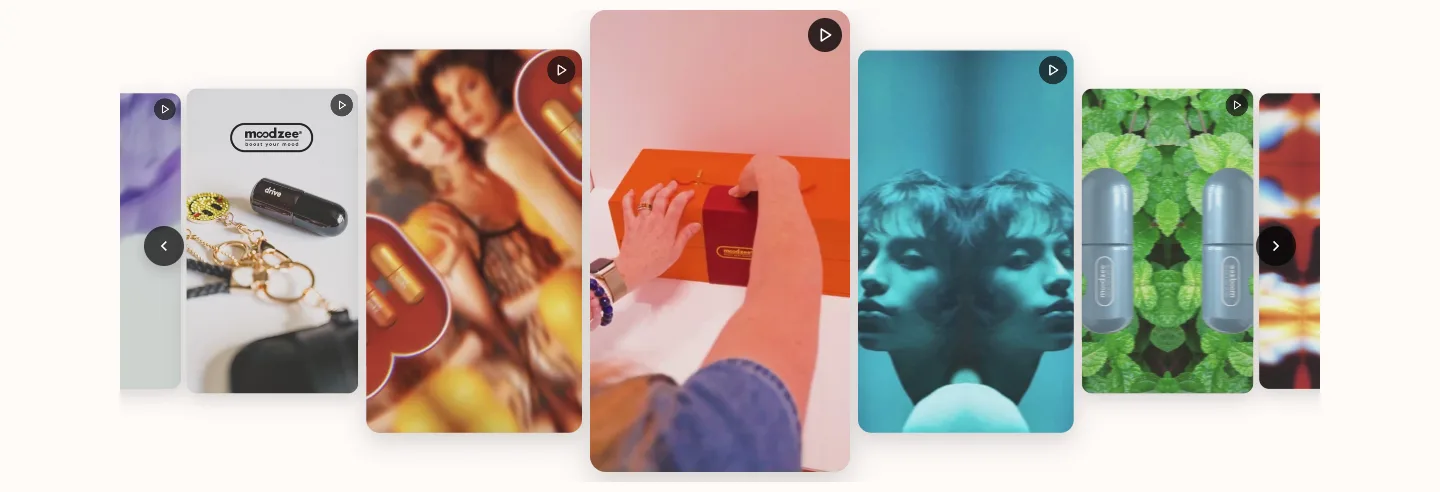
A stories widget is the row of circles at the top of Instagram, transplanted onto your store. Each circle is a short vertical video; tapping it opens a full-screen player that moves through clips, with a product tag the shopper can act on.
It is the most space-efficient way to get video onto a Shopify page, and it uses an interaction pattern nobody needs to learn. This guide covers how to add one, what to put in each bubble, where the row should sit, and how to keep it from costing you page speed.
If you are weighing stories against other video layouts, the shoppable video setup guide compares the formats before you commit to one.
Why the stories pattern works on a store
Three things make story bubbles earn their place where a plain video embed does not.
It is compact. A row of eight bubbles takes about the height of a text line and a half. The same eight clips as a grid would push the buy box off the screen. On mobile, where most of your traffic is, that difference decides whether the section gets seen.
It is opt-in. Nothing plays until a shopper taps. That respects people on slow connections, avoids the autoplay rules that trip up embedded video on phones, and means the shoppers who do open it actually wanted to.
It is familiar. Shoppers know that a ring around a circle means "tap for a short video", that swiping moves to the next one, and that a product card at the bottom is tappable. You do not have to explain any of it.
The trade-off is that the bubbles have to earn the tap. A row of eight identical thumbnails gets ignored. Each bubble needs a clear face, product or moment, and a label underneath that says what it answers.
Adding a stories widget with an app
Building a stories player by hand means writing a full-screen vertical player, swipe handling, progress bars, product cards, and the mobile autoplay rules. It is a real project. In practice, a stories widget on Shopify comes from an app, placed as an app block.
The steps, using a shoppable video app that offers a stories layout:
- Install the app from the Shopify App Store and open it from your admin.
- Create a feed. Import Reels from your Instagram account or videos from TikTok, or upload MP4 files directly.
- Tag the product each clip shows. This is what turns a story into a shoppable story: the tag becomes the product card in the player.
- Choose the stories widget as the layout for that feed.
- In Online Store, Themes, Customize, open the template you want (Home page, or Products, Default product), click Add section, open the Apps tab, and pick the stories widget.
- Drag it into position, save, and open the page on a phone.
Because the widget is an app block, it appears in the theme editor's section list like any other section, and you can place it differently on each template. Theme updates leave it alone.
Import is not permission
Importing a Reel from your own account is fine. Importing a customer's or creator's clip still needs their written yes before it goes on the store. Keep the reply with the file.
What goes in each bubble
A story bubble is a promise: tap this and you will learn one specific thing. The row works when each bubble keeps a different promise.
For a typical product store, five to eight bubbles cover the questions that stop people buying:
- In real life. The product on a real person or in a real room, shot on a phone. Not the studio shot.
- Size and scale. Held in a hand, next to something familiar, worn by someone whose height is stated on screen.
- How it works. Unboxing, setup, the first use. Thirty seconds, no voiceover needed.
- Texture and material. Close, slow, good light. The clip that answers "is it cheap-feeling?"
- A customer's take. A UGC clip with permission, credited. Proof, not pitch.
- The variant question. Colour or size comparisons side by side.
- Care and after. Washing, charging, folding away. The question people ask in support.
Label each bubble with two or three words that name the question: "On a 5'4" model", "Unboxing", "Wash test". A label that says "Video 3" is a wasted bubble.
Order by objection, not by date. Put the question that most often stalls a purchase first, because bubbles further right may never be scrolled to.
For guidance on shooting these clips without a crew, see the phone product video guide.
Product tags inside the player
The tag is what makes the stories widget a sales tool rather than a gallery. When a shopper opens a story, a small product card sits in the player with the title, price and an add-to-cart control. They can add the item and keep watching, or tap through to the product page.
A few practical rules:
- Tag the exact variant shown if the app allows it, so a shopper who taps "add" gets the colour they just watched.
- One tag per clip is usually right. A story showing three products is a catalogue, not a story. Some free plans cap tagging at one product per video, which for stories is not a real limitation.
- On product pages, tag the page's own product. It sounds obvious, but a stories row imported from a general feed will tag whatever was tagged at import time, and a mismatch between the page and the card in the player is confusing.
The Instagram Reels to Shopify sales guide covers how tagging attributes revenue back to specific clips, which is what lets you decide which bubbles stay.
Where the row belongs
The stories row is small enough to go almost anywhere, which is how it ends up somewhere nobody looks. Two positions work; use one row per page.
Home page, under the hero. A first-time visitor scrolls once and sees a row of real people using the product. It sets the tone faster than a headline, and it gives the visitor something to do while they decide whether to browse.
Product page, under the buy box. The shopper has seen the price and the images. The stories row answers the remaining doubts right there, before the description. On mobile this is the highest-value screen on the site.
Two placements that look reasonable and do not work:
- Above the hero or announcement bar. It reads as navigation and gets ignored.
- In the footer, or below related products. Almost no one scrolls that far.
Stories widget versus other shoppable video layouts
| Layout | Space used | Plays | Best for |
|---|---|---|---|
| Stories bubbles | One short row | On tap, full-screen | Home page and under the buy box |
| Inline row or carousel | Two to three rows | Muted autoplay in view | Product pages with many clips |
| Overlay (floating player) | Corner of the screen | Muted autoplay | Home and collection pages |
| Swipe feed | Full screen | On scroll, one at a time | Dedicated shop-the-look page |
Stories for collections and campaigns
Once the home page and product page rows are working, two more uses are worth trying.
Collection stories. A row at the top of a collection page with one bubble per key product, each opening that product's best clip with its tag. It functions as a visual table of contents and gives a shopper a fast way to compare items in motion before scrolling the grid.
Campaign stories. During a launch or a sale, a temporary row on the home page with bubbles for the featured items. The stories format suits time-limited content because it is visually distinct from the rest of the page and easy to remove afterwards. Build it as its own feed so you can unpublish the row without touching the evergreen one.
In both cases the same rules hold: five to eight bubbles, one question per bubble, labels that name it, and nothing loading until a tap.
Sizing and styling the bubbles
Most stories widgets expose a few visual settings. The ones that matter:
Bubble size. Around 64 to 80 pixels on mobile. Smaller and the thumbnail is illegible; larger and the row scrolls after four bubbles.
Ring colour. Use one of your brand's accent colours, not Instagram's gradient. The ring signals "unwatched" the way it does in the app, and a brand colour keeps the row looking like part of the store.
Labels. Short, under the bubble, in your body font. Two lines maximum. If the widget lets you hide labels, do not; the label is what earns the tap.
Poster frame. The thumbnail is cropped to a circle from the centre of the first frame. Choose clips whose opening frame has the subject in the middle, or set a custom poster if the widget allows it. A bubble showing the edge of a table is a dead bubble.
Check all of this on a physical phone. Bubbles that look fine at desktop width are routinely too small or too crowded at 375 pixels.
Keeping it fast
A stories row done well is one of the lightest video elements you can add, because nothing heavy loads until a tap. Done badly, it preloads eight videos on every page view.
What to check:
- The bubbles render as small poster images, not as paused video elements. View the page source or the Network tab on a phone: you should see small image requests and no MP4 or M3U8 requests until you tap.
- The player's JavaScript loads deferred, not in the head.
- Clips are exported vertical at 720p and kept short. Stories are a 10 to 20 second format.
Run a mobile Lighthouse test on the product page before adding the widget and again after. The row should move Largest Contentful Paint very little and add nothing meaningful to Total Blocking Time. If it does more than that, the widget is loading video eagerly and it is the wrong widget. The video and bounce rate article covers what each metric means for a store with video on it.
Stories widget launch checklist
- Five to eight bubbles, each answering a different shopper question
- Labels name the question in two or three words
- Bubbles ordered by objection, strongest first
- Every clip tagged to the product it shows, exact variant where possible
- Permission recorded for any clip you did not shoot
- Poster frames centred so the circle crop shows the subject
- Placed under the hero on the home page and under the buy box on products
- Network tab confirms no video bytes load before a tap
- Mobile Lighthouse compared before and after
Building a stories row without an app
It is possible to build the bubble row yourself, and worth understanding what that involves before deciding not to.
The row itself is easy. A custom section with video blocks, each rendered as a circular poster image with a label, is a few dozen lines of Liquid and CSS:
```liquid
<div class="stories" style="display:flex;gap:16px;overflow-x:auto;padding:8px 0">
{% for block in section.blocks %}
<button class="story" data-story="{{ forloop.index0 }}" {{ block.shopify_attributes }}
style="background:none;border:0;width:80px;flex:none;text-align:center">
<img src="{{ block.settings.video.preview_image | image_url: width: 160 }}"
alt="{{ block.settings.label | escape }}"
style="width:72px;height:72px;border-radius:50%;object-fit:cover;border:3px solid var(--color-accent)">
<span style="display:block;font-size:12px;margin-top:4px">{{ block.settings.label | escape }}</span>
</button>
{% endfor %}
</div>
```
The player is the hard part. A stories player needs a full-screen overlay, a vertical video element with the correct muted and inline attributes, a progress bar per clip, tap-to-advance and tap-to-go-back, swipe to dismiss, a product card with add-to-cart wired to Shopify's cart API, and a way to record which clip was watched and for how long. Each of those is a day or two of work and testing across iOS Safari, Android Chrome and the Instagram in-app browser, and each breaks in a different way on each.
That is why stories on Shopify are almost always an app block. The row is trivial; the player is a product. If you have a developer and a specific design that no widget matches, build it. Otherwise install one, place it, and spend the time on the clips instead.
Reading the numbers and rotating bubbles
A stories row is not a set-and-forget element. The first version is a guess about which questions matter; the analytics tell you which guess was right.
Look at three figures per clip: opens (how many shoppers tapped the bubble), watch time (whether they stayed), and attributed add-to-cart or revenue (whether it moved the decision). A bubble with many opens and short watch time has a good label and a bad clip: re-shoot it. A bubble with few opens and long watch time has a bad label or a bad position: rename it and move it left. A bubble with none of the above after a few weeks should be replaced.
Do this monthly. Over a couple of cycles the row settles into the five or six clips that actually answer what your shoppers ask, and that row will outperform any hero video you could produce.
For stores that want to compare stories against a swipe feed or an inline row before deciding, the shoppable video examples collection shows each layout on real product and home pages.
Frequently asked questions
- What is a stories widget on a Shopify store?
- It is a row of circular video thumbnails, like the stories tray at the top of Instagram, placed on a page of your store.
- Can I add Instagram stories directly to Shopify?
- Not the ephemeral 24-hour stories from your Instagram account; those are not exposed for embedding.
- Where should a stories widget go on a Shopify page?
- On the home page, directly under the hero, so a first-time visitor reaches it within one scroll. On product pages, under the buy box, above the description. One row per page.
- How many story bubbles should I show?
- Five to eight. Fewer than five looks thin; more than eight scrolls off the edge on a phone and the later bubbles are never seen.
- Does a stories widget slow down my Shopify store?
- Not if the videos load on tap.
- Can shoppers buy from inside a story on Shopify?
- Yes, if the widget supports product tagging. The tag appears in the player as a product card with an add-to-cart control, so the shopper can add the item and keep watching.