

Can You Add Video to Shopify Product Images? Limits and Workarounds
Yes, Shopify lets you add video alongside product images. It comes with limits on size, length, variants and what product cards can show. Here is what works, what does not, and the workaround for each gap.

On this page
Key takeaways
- Shopify product media accepts MP4 and MOV video files and YouTube or Vimeo links, and every Online Store 2.0 theme renders them in the gallery.
- Videos cannot be assigned to a variant, do not autoplay in Dawn's gallery, and appear on product cards as a still frame.
- Bulk upload through the product CSV is images only; video needs the admin, the API or an app.
- For per-variant video, autoplaying loops or shoppable tags, use a metafield, a theme edit or an app block rather than fighting the gallery.
Yes. Shopify's product media has accepted video since 2019, and it sits in the same grid as the images. You can upload an MP4 or MOV, or paste a YouTube or Vimeo link, and any Online Store 2.0 theme will show it in the product gallery.
The rest of this guide is about the limits that follow: file size and length, what happens with variants, what product cards do with a video, and where the gallery is simply the wrong place for it. For each limit there is a workaround, and some of them are better than the gallery in the first place.
For the strategy side of where video earns its place on a product page, the product page optimisation guide covers placement; this article covers what the platform lets you do.
How to add a video to a product
In the admin:
- Products, open the product.
- In the Media section, drag the video file in, or click Add media and choose the file.
- Wait for processing to finish; the thumbnail shows a processing indicator until it does.
- Drag the video to the position you want in the grid. Position two or three is typical, keeping a clean product photo first.
- Save.
For a YouTube or Vimeo video, click Add media, choose the option to add from a URL, and paste the link. The video must be public or unlisted with embedding allowed.
The video then appears in the theme's gallery. On Dawn it renders as a poster image with a play button; on tap the player loads. On Horizon the media block's settings decide playback. On older themes, see the section on theme support below, because some skip video entirely.
The limits, one by one
Shopify product video: what the platform allows
| Question | Answer | Workaround |
|---|---|---|
| File type | MP4 or MOV for hosted; YouTube or Vimeo links for external | Convert other formats before upload |
| Size, length, resolution | Documented in the Help Center (at the time of writing 1 GB, 10 minutes, 4K) | Export short clips at 720p or 1080p; the cap is not a target |
| Media per product | Shopify documents a per-product cap on total media items | Consolidate; use a widget for large UGC sets |
| Assign video to a variant | Not supported in the variant media picker | Variant metafield of type file, or an app tag |
| Autoplay in the gallery | Not in Dawn by default | Video section, theme edit or app block |
| Video on product cards | Shows the first frame as a still | Card template edit or app widget |
| Bulk upload by CSV | Images only | Admin GraphQL API or an app import |
| Download protection | Videos are served from Shopify's CDN; no download button in Dawn | Accept it; anything that plays can be captured |
Size, length and resolution
Shopify publishes limits for hosted video in the Help Center, and they are generous: at the time of writing, up to 1 GB per file, 10 minutes long and 4K resolution. Check the current figures before you plan a big upload, because they have changed over the years.
Treat the limit as a ceiling, not a target. A product clip should be 10 to 30 seconds, exported at 720p or 1080p, and a few megabytes. A 4K export of the same clip looks identical on a phone and takes many times longer to start.
Media count per product
Shopify caps total media items (images, videos and 3D models together) per product; the number is documented in the Help Center. Few stores hit it with product photography alone, but a product with twelve colourways and a video per colour can. If you are near the cap, the per-variant workaround below and a UGC widget both take load off the gallery.
Processing time
A video is not available to the storefront the moment the upload bar completes. Shopify transcodes it into several MP4 renditions and an HLS stream first, and the admin shows a processing indicator on the thumbnail until that finishes. Short clips are usually ready within minutes; long or high-bitrate files, and large batches uploaded together, take longer.
During processing the product page either skips the video or shows an empty slot, depending on the theme. If you are launching a product at a fixed time, upload the video well ahead and confirm it plays on the storefront before the launch email goes out. If a video sits in processing for far longer than its neighbours, delete it and upload again; a stuck file is rare but it happens.
Variants
This is the limit that surprises people. The variant editor lets you choose an image for each variant, and that picker only offers images. You cannot make "select Green" swap the gallery to the green video.
Two workarounds:
A variant metafield. Create a metafield on variants of type file, restricted to video, and upload the clip for each variant. Then render it in the theme when the variant changes. The Liquid for the currently selected variant looks like this:
```liquid
{% assign v = product.selected_or_first_available_variant %}
{% if v.metafields.custom.video != blank %}
{{ v.metafields.custom.video.value | video_tag: image_size: '800x', muted: true, loop: true, controls: true, preload: 'none' }}
{% endif %}
```
Dawn re-renders the product section when a variant is selected, so the block updates. On other themes you may need to place this in a section that refreshes on variant change.
A shoppable video tag. An app widget that tags the exact variant inside the player does the same job from the other direction: the shopper watches the green clip and taps a card that adds the green variant. This needs no theme code and works on any theme.
Autoplay
Dawn's product gallery wraps each video in deferred media: poster, play button, load on tap. That is deliberate and it is the right default for a gallery. If you want a silent loop, Dawn's Video section (a separate section, not the gallery) or an app block is the reliable route, and on phones it has to be muted and inline regardless. The mobile autoplay guide has the exact attributes.
Product cards
On collection pages, search results and recommendation rows, Dawn and Horizon render the featured media's preview image. If your first media item is a video, the card shows its first frame, not a player. Choose the first frame carefully or keep a photo in position one. If you want cards that move, the video product card guide covers the Dawn edit and its performance limits.
Bulk upload
The product CSV import carries image URLs in the Image Src column and has no column for video. For many products, the options are the Admin GraphQL API, which can create media on a product from a publicly accessible file URL, or an app that imports from a source such as Instagram or TikTok and attaches products by tag. For a dozen products, the admin drag-and-drop is faster than setting up either.
If you or a developer go the API route, the mutation is productCreateMedia. It takes the product's global ID and a list of media, each with a source URL that Shopify can fetch and a content type:
```graphql
mutation {
productCreateMedia(
productId: "gid://shopify/Product/1234567890",
media: [
{
originalSource: "https://cdn.example.com/clips/blue-jacket.mp4",
mediaContentType: VIDEO,
alt: "Blue jacket worn outdoors, front and back"
}
]
) {
media { id status }
mediaUserErrors { field message }
}
}
```
The response returns a status that starts as processing; poll the product's media or subscribe to the relevant webhook before expecting the video on the storefront. The source URL has to be reachable from Shopify's servers, so a file on your laptop or behind a login will fail with a user error rather than silently. Rate limits apply, so batch in small groups and check mediaUserErrors on every call.
Files versus product media
Shopify Files (Content, Files in the admin) also accepts video, and it is easy to assume that uploading there makes the video available to products. It does not. Files is a general store for assets used by theme sections, metafields and pages. Product galleries only read from the product's own media list.
The practical rule: upload to the product when the video belongs to that product's gallery; upload to Files when a theme section or metafield will reference it. The same file can live in both places if needed, and Shopify processes it separately for each.
Does your theme support product video?
Every theme in the Shopify Theme Store built for Online Store 2.0 renders product video, because they loop over product.media and branch on the media type. Two groups of themes do not:
- Very old themes that loop over
product.images. Video is not an image, so it is skipped without any error. - Custom themes that copied gallery code from one of those.
The fix is a small change in the product template's gallery loop, from product.images to product.media with a case on media.media_type. The product video not showing troubleshooting guide has the before-and-after Liquid. If you cannot edit the theme, an app block renders video in its own section and does not depend on the gallery at all.
A quick way to tell
Open a product with a video on the storefront. If the gallery shows the images and the video is simply absent, with no empty slot and no error, the theme is almost certainly iterating images rather than media.
When the gallery is the wrong place
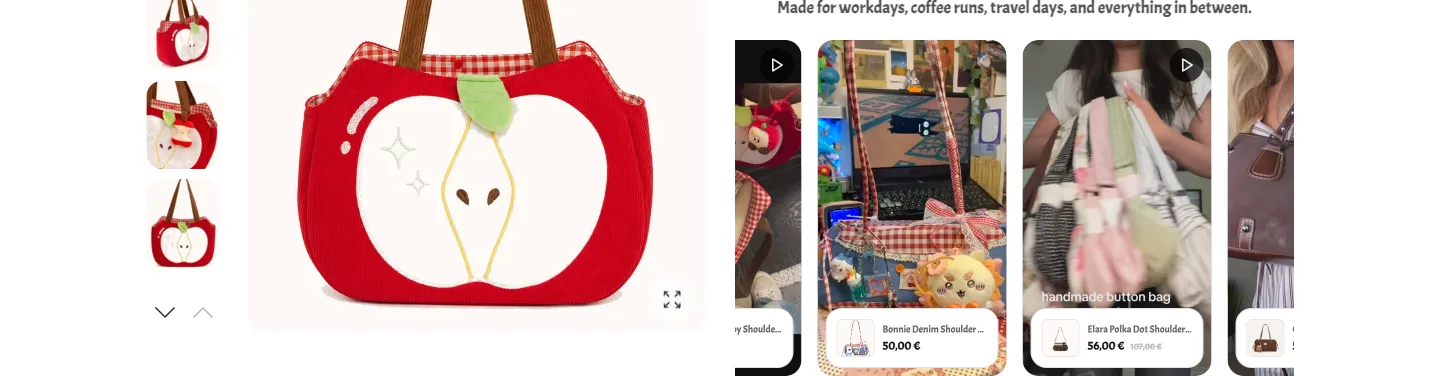
The gallery is built for images: it is a set of stills the shopper flicks through to inspect the product. A short clip of the product in use belongs there. Several other kinds of video do not, and forcing them in creates the problems above.
Reels and UGC. These are vertical, meant to autoplay muted, and often show a person rather than the product on white. In a gallery they look out of place and they do not autoplay. They belong in a widget under the buy box, with a product tag.
More than a couple of clips. Six videos in a gallery bury the images. A carousel or grid widget holds six comfortably and lazy-loads them.
Video that should sell, not only show. A gallery video has no add-to-cart inside it. A shoppable widget does, and it reports which clip led to which order. The shoppable video setup guide walks through placing one.
Video on a page that is not a product page. Home page, collection page, landing page. The gallery does not exist there; use a Video section from the theme, or an app block.
Alt text and accessibility for product video
Product video has an alt text field in the admin, the same as images, and it is worth filling in. Themes use it for the aria-label on the player or the alt on the poster image, so a screen reader user knows what the clip shows rather than hearing "video".
Write it as a description of what happens in the clip, not the product name: "Jacket zipped and unzipped, hood raised, shown from the back" is more useful than "Blue jacket video". Keep it under a sentence or two.
Two more accessibility habits cost nothing:
- Keep controls on for gallery video. Dawn does this by default. A shopper who cannot use a mouse or who has autoplay blocked needs a visible way to start and stop it.
- If the clip depends on speech, burn captions into the export before upload. Shopify's hosted video does not carry a separate caption track, and the video plays muted on phones by default anyway, so on-screen text is the only reliable channel.
Speed and SEO considerations
Adding video to a product does not by itself slow the page on Dawn, because the video is deferred until tapped. The costs come from three habits:
- Making the video the first media item, so its poster becomes the Largest Contentful Paint image and it is often a blurry motion frame.
- Uploading a 4K, 60-second export when a 720p, 15-second clip would do.
- Adding autoplay through a theme edit without a poster or
preload="none".
On the SEO side, a Shopify-hosted video in product media is not automatically described to search engines as a video. If ranking product videos in video results matters to you, the video SEO guide for Shopify covers structured data and the thumbnail requirements.
Before you upload product video
- Clip is 10 to 30 seconds, vertical or square, exported at 720p or 1080p
- First frame reads as a photo, or a photo stays in position one
- Video placed at position two or three in the media grid
- Per-variant clips handled with a metafield or a tagged widget, not by hoping
- External links are public or unlisted with embedding allowed
- Theme confirmed to loop over product.media
- Storefront checked on a real phone after processing completes
Summary
You can add video to Shopify product images, and for a single clip of the product in use, the gallery is the right place. The limits are real but each has a route around it: a metafield for per-variant video, a section or app block for autoplay, a template edit for moving cards, the API or an app for bulk, and a shoppable widget for anything that needs a tag and a number attached to it.
Pick the route by what the video is for. Inspection belongs in the gallery. Persuasion belongs next to the buy button, in a container built to be tapped and measured.
Frequently asked questions
- Can you add a video to Shopify product images?
- Yes. The product media area in Shopify admin accepts MP4 and MOV files alongside images, and also YouTube or Vimeo links. The video appears in the product gallery on any Online Store 2.
- What is the video size limit for Shopify products?
- Shopify documents limits for hosted video in its Help Center; at the time of writing they are up to 1 GB per file, 10 minutes long and 4K resolution, with a separate cap on total media items per product.
- Can I assign a video to a specific variant on Shopify?
- Not through the standard variant media picker, which accepts images only. The workaround is a variant metafield of type file that references a video, rendered by the theme when that variant is selected.
- Why does my product video show as an image on the collection page?
- Product cards in Dawn, Horizon and most themes render the featured media's preview image, not a player. If the first media item is a video, the card shows its first frame.
- Can I upload product videos in bulk with a CSV?
- No. The product import CSV carries image URLs only. Bulk video needs the Admin GraphQL API, which can create media on a product from a public file URL, or an app that handles imports.
- Do product videos autoplay on Shopify?
- Not in Dawn's product gallery, which defers the video until tapped to keep the page light.