
Shopify Product Video Not Showing? 7 Fixes for Dawn, Horizon and Buy Button
A product video that uploads fine but never appears on the storefront usually comes down to one of seven causes. Here they are, in the order worth checking, with the fix for each.

On this page
Key takeaways
- Most missing videos are still processing, sit in Files instead of on the product, or are below the fold in the gallery.
- Product cards on collection pages show a still frame for video media in Dawn and Horizon, which is expected behaviour, not a bug.
- Buy Button embeds render images only, so a video on the product will not appear in an embed on an external site.
- Older themes that loop over product.images instead of product.media skip videos entirely and need a small Liquid change.
You uploaded a product video, the admin shows it in the media grid, and the storefront still shows nothing. Or it shows on the product page but not on the collection card, or on your site but not in the Buy Button embed on your blog.
Each of those is a different problem with a different fix. This guide walks through the seven causes that account for nearly every "video not showing" ticket we've seen, ordered from most to least likely, so you can stop at the first one that matches.
If you're still deciding where video should live on your store at all, the guide to adding shoppable video on Shopify covers placement before you get into the debugging.
First, confirm where the video actually lives
Shopify stores video in three different places, and a video in the wrong one will never appear on a product page no matter what the theme does.
- Product media. The grid on the product's admin page. This is the only place a theme's product gallery reads from.
- Files. Content, then Files. Anything here is available to theme sections and Liquid, but is not attached to any product.
- External. A YouTube or Vimeo link added through the product media "add from URL" option. Shopify stores the reference, not the file.
Open the product in admin and look at its media grid. If the video is not there, nothing further down this list matters until it is. Drag the file in, or use "Add from URL" for YouTube and Vimeo, and wait for the upload to finish.
Limits worth knowing before you upload
Shopify documents its own limits for hosted video (at the time of writing: up to 1 GB per file, 10 minutes long, 4K resolution, MP4 or MOV) and a cap on total media items per product. Check the current numbers in the Shopify Help Center before you batch upload, because a file that quietly fails validation never appears in the grid and never produces an error on the storefront.
The seven fixes, most likely first
Fix 1: the video is still processing
A freshly uploaded video is not available to the storefront until Shopify has transcoded it into the renditions it serves. During that window the admin shows a processing indicator on the thumbnail, and the product page either skips the video or shows an empty slot.
Short clips finish quickly. Long, high-bitrate files can take noticeably longer, and if you uploaded twenty products' worth in one session they queue.
The fix is patience, then a hard refresh. Reload the admin product page and confirm the processing badge is gone. Then open the storefront in a private window, because your normal browser may be serving a cached copy of the product page from before the video was ready.
If a video stays in processing for an unusually long time, delete it and re-upload. Occasionally a file gets stuck, and a fresh upload clears it.
Fix 2: the video is on the product but below the fold
This one is not a bug, but it generates a lot of support requests. On mobile, Dawn's product gallery is a horizontal slider. If the video is media item nine, a shopper sees the first image and has no visual hint there is a video at all.
Drag the video to position two or three in the admin media grid. Position one is usually best left to a clean product photo, because the first media item is also what appears on collection cards and in social previews. Position two puts the video one swipe away, which is where it gets watched.
On desktop, Dawn's thumbnail layout shows a small play icon on the video thumbnail. On mobile with thumbnails hidden, it does not, so position matters more there.
Fix 3: the video sits in Files, not on the product
Shopify Files is where a lot of merchants upload video first, especially if they came from a theme section that asked for a video. Files is a general-purpose store. Product galleries do not read from it.
You have two options:
- Upload the same file again, this time on the product page's media grid. It will process again and appear in the gallery.
- Leave it in Files and use it in a theme section instead. Dawn and Horizon both ship a Video section that takes a Shopify-hosted video from Files. That puts the video on the page as a separate section, not inside the gallery, which is sometimes what you want anyway.
The second route is worth considering if you have one hero clip you want on every product page. The gallery route is right when the video belongs to one product.
Fix 4: the external URL is not embeddable
YouTube and Vimeo links added as product media only work if the source video is embeddable. Three things break it:
- The video is set to private. Unlisted works, private does not.
- Embedding is disabled on the video's settings on YouTube or Vimeo.
- The link is a Shorts, playlist or channel URL rather than a plain watch URL.
The symptom is usually a black or blank frame where the player should be, rather than a missing slot. Fix it at the source: make the video public or unlisted, allow embedding, and paste the standard https://www.youtube.com/watch?v=... or https://vimeo.com/... form of the link.
External video also can't be muted and autoplayed the way a hosted file can, so if the goal is a silent looping product clip, upload the file to Shopify instead.
Fix 5: the collection card shows a still image
Dawn, Horizon and most Online Store 2.0 themes render product cards with an image tag pointed at the featured media's preview image. When the featured media is a video, the card shows the poster frame of that video, not a player.
This is intentional. A collection page with twenty autoplaying videos would be heavy, and card markup is shared across search results, recommendations and cart drawers.
If you want the still to look right, choose a clean first frame when you export the video, because Shopify uses the first frame as the preview. If you want a genuinely moving card, that takes a template edit. The guide to using video instead of an image on product cards walks through the Dawn card-product.liquid change and the performance guardrails it needs.
Where a product video shows by default
| Location | Dawn | Horizon | Buy Button embed |
|---|---|---|---|
| Product page gallery | Yes, tap to play | Yes, tap or autoplay per block setting | No |
| Collection product card | Poster image only | Poster image only | Not applicable |
| Featured product section | Yes | Yes | Not applicable |
| Search results and recommendations | Poster image only | Poster image only | Not applicable |
Fix 6: the Buy Button embed ignores video
The Buy Button channel generates a JavaScript embed you can drop onto any external page. In our tests it renders the product's images in a small carousel and does not include video or 3D media at all. There is no toggle to change this.
If you sell through embeds and the video matters, put it beside the Buy Button rather than inside it. Two workable patterns:
- A plain
<video>element on the host page using the MP4 rendition from Shopify's CDN, with the Buy Button beneath it. - A shoppable video widget from an app, which carries its own product tag and add-to-cart, embedded on the host page.
Either way, do not expect the Buy Button itself to show the clip. Hours get lost re-uploading media that the component was never going to render.
Fix 7: the theme loops over images, not media
This is the one that catches merchants on older or heavily customised themes. Shopify introduced video and 3D as product media in 2019. Themes written before that, or custom themes that copied older code, iterate over product.images. Video is not an image, so it is silently skipped.
Open your theme's product template (usually sections/main-product.liquid or templates/product.liquid) and search for the gallery loop. If you see this:
```liquid
{% for image in product.images %}
<img src="{{ image | img_url: '1024x' }}" alt="{{ image.alt | escape }}">
{% endfor %}
```
the theme cannot show video. It needs to loop over product.media and branch on media_type:
```liquid
{% for media in product.media %}
{% case media.media_type %}
{% when 'image' %}
{{ media | image_url: width: 1024 | image_tag: loading: 'lazy' }}
{% when 'video' %}
{{ media | video_tag: image_size: '1024x', controls: true, muted: true, loop: true, preload: 'none' }}
{% when 'external_video' %}
{{ media | external_video_tag }}
{% endcase %}
{% endfor %}
```
That is the minimum. A real gallery also needs the slider markup around it, and if the theme's slider JavaScript assumes every slide is an image it may need a small adjustment too. If that is more than you want to take on, an app block that renders video in its own container is a faster route, and it survives theme updates.
Custom theme, no code access
If an agency built the theme and you cannot edit it, add the video as an app block instead. App blocks live in their own section and do not depend on the gallery loop. The theme editor's "Add block" menu lists them under Apps.
Bonus check: another app or script is hiding it
Gallery apps, image-zoom apps, page builders and "variant image" apps all rewrite the product gallery on the client. A few of them rebuild the gallery from the image list only, which drops video exactly the way an old theme does, but the Liquid looks fine because the deletion happens in JavaScript after the page loads.
The quick test is to disable the suspect app's embed in the theme editor (Theme settings, App embeds) or to preview the theme with ?preview_theme_id= on a duplicate theme with the app's snippet removed. If the video comes back, you have found the culprit. Most gallery apps have a setting to include video media; if yours does not, it is a reason to reconsider whether that app is worth keeping, and the Shopify apps that increase sales roundup is a useful place to compare replacements.
Browser extensions can do the same thing on your own machine. Ad blockers sometimes block Shopify's CDN video path, so a video that is missing only for you and not for customers is often that.
How to see what the storefront is actually doing
When the seven fixes above do not obviously apply, five minutes with the browser's developer tools usually settles it.
Open the product page, right-click the spot where the video should be and choose Inspect. Then search the page's HTML (the Elements panel, Ctrl or Cmd plus F) for video, deferred-media and the video's filename.
- No match at all. Liquid never rendered the video. That points to Fix 3 (wrong location), Fix 7 (theme loops images) or a product template that does not include the gallery block.
- A
deferred-mediaelement with a poster image. The theme rendered it correctly and is waiting for a tap. That is Dawn working as designed. - A
videoelement with nosourcechildren. Processing has not finished, or the media object has no playable renditions. Back to Fix 1. - A
videoelement with sources, but nothing visible. Look at the Network tab, filter by Media, and reload. A request to the CDN that returns an error or is blocked by an extension is Fix 8. A request that succeeds while the element stays blank is CSS: check fordisplay: noneor a zero-height container from a gallery app.
Write down which of these you saw before contacting theme or app support; it turns a vague "video not showing" into a question they can answer in one reply.
A quick check for "it's there but it's not playing"
Sometimes the video is present and the complaint is really that it does not move. On phones, every browser blocks autoplay with sound. A video that is present but sitting on its first frame with a play button is behaving correctly for a gallery.
If you want silent autoplay, the element needs muted, autoplay, loop and playsinline, and iOS Low Power Mode will still pause it. The full attribute set and the Liquid to emit it are in the mobile autoplay troubleshooting guide.
Run this before opening a support ticket
- Video appears in the product's admin media grid, not only in Files
- Processing badge has cleared in admin
- Video is in position two or three, not at the end of the gallery
- External links are public or unlisted with embedding allowed
- You are looking at the product page, not a collection card or Buy Button embed
- Theme's gallery loops over product.media, not product.images
- Tested in a private window on both desktop and a real phone
When an app widget is the better fix
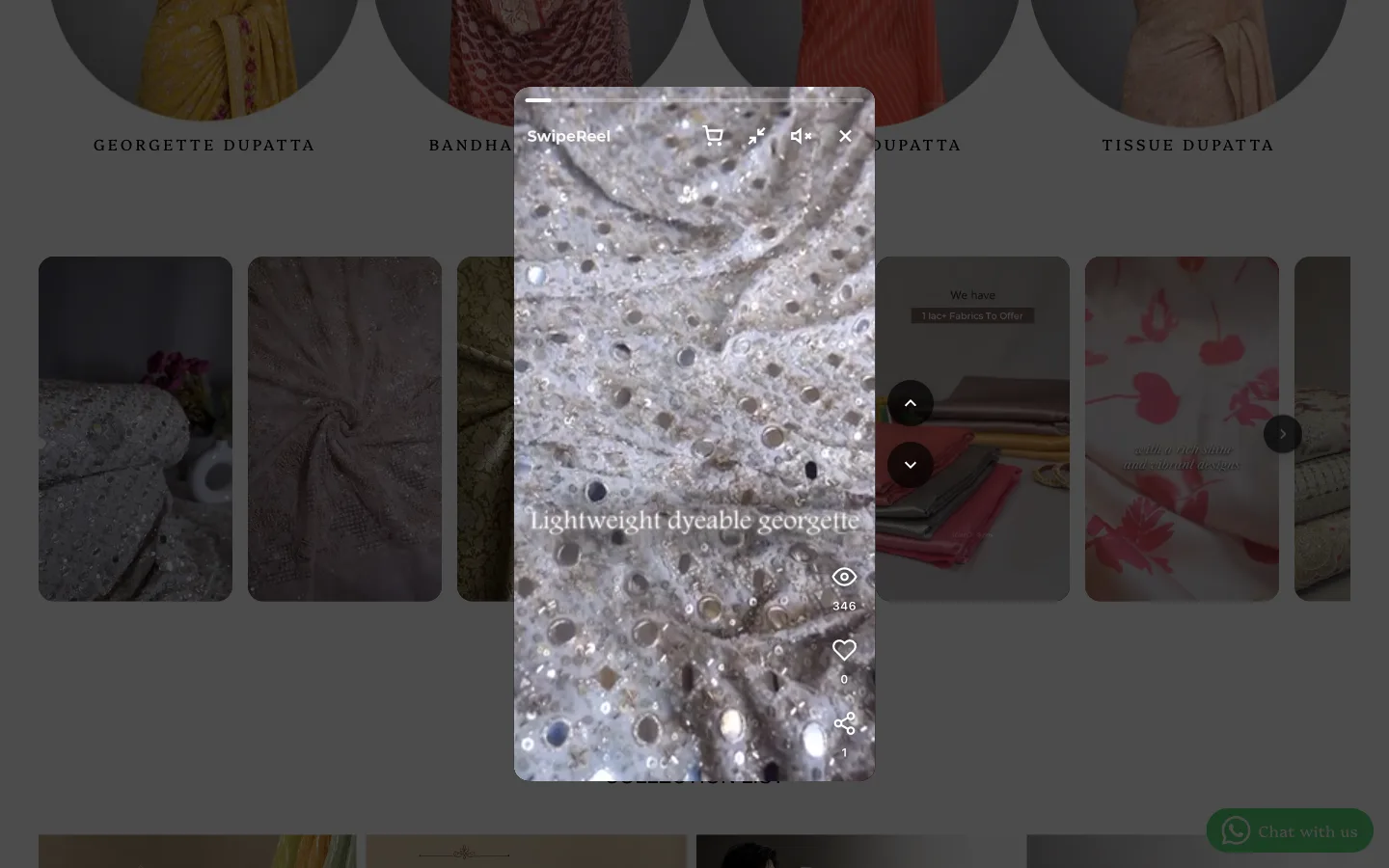
If you have worked through all seven and the underlying problem is that the theme's gallery is the wrong place for the video, stop fighting the gallery.
Product galleries are built for images. A shoppable video widget puts video in a container built for it: vertical aspect ratio, muted autoplay handled correctly on every mobile browser, a product tag that opens add-to-cart inside the player, and lazy loading so the page's speed score does not take the hit. It also works the same on Dawn, Horizon and a custom theme, because it is an app block rather than a template edit.
For a sense of what that looks like in practice, the shoppable video examples collection shows product page, home page and collection placements from real stores. And if speed is your worry, the bounce-rate and video article covers what lazy loading changes on Core Web Vitals.
The gallery is still the right place for a short clip of the product in use. The widget is the right place for reels, UGC and anything you want to autoplay and tag.
Frequently asked questions
- Why does my Shopify product video upload but not show on the product page?
- The most common reasons are that Shopify is still processing the file, the video sits in Files rather than on the product's media list, or the theme renders product.images instead of product.media.
- Why does my product video show as a picture on the collection page?
- Dawn, Horizon and most Online Store 2.0 themes render the featured media's preview image on product cards rather than the video itself.
- Does the Shopify Buy Button support product videos?
- In our tests the Buy Button embed renders product images only and ignores video and 3D media.
- How long does Shopify take to process a product video?
- A short vertical clip usually finishes within a few minutes, while longer or higher-resolution files can take longer.
- Can I add a YouTube or Vimeo video to a Shopify product?
- Yes. In the product media area choose the option to add media from a URL and paste a public YouTube or Vimeo link.
- Why does my video show on desktop but not on my phone?
- Usually it is showing, but as a still with a play button, because mobile browsers block autoplay unless the video is muted and set to play inline. Tap it and it will play.